SharePoint Restricted Wizards
There is an extra level of security that is available in the K2 Designer for SharePoint. This is a design-time security check that allows site administrators to filter out a set of wizards of their choosing. This enables them to remove some wizards from the design canvas and only expose them to the SharePoint users that they specify. If they don’t specify any users that can see these “restricted” wizards, then nobody using the K2 Designer for SharePoint will see these wizards. By default, however, all wizards are visible to all process designers.
 |
Rights are restricted at the site level, NOT the site collection level |
The Restricted Wizards can be found by navigating to K2 Site Settings on the specific site and clicking on the Set Restricted Wizards link in the K2 Designer for SharePoint Management section of this page as shown below.
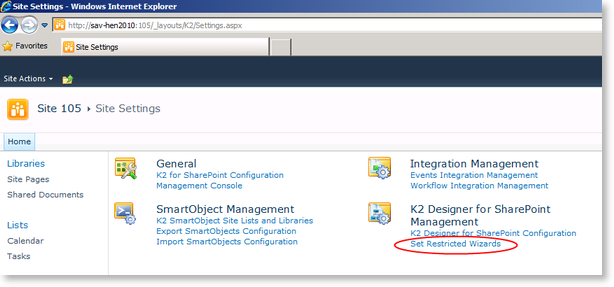
Fig. 1. Site Settings
The K2 Restricted Wizards page opens when clicking on the link.
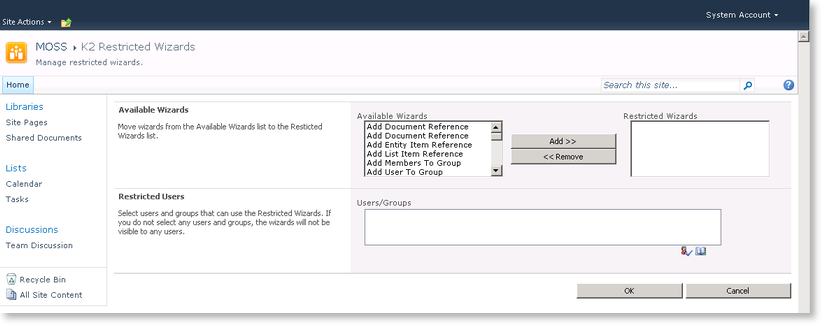
Fig. 2. K2 Restricted Wizards
| Feature | Description |
|---|---|
| Available Wizards |
List of wizards available for restriction |
| Restricted Wizards |
List of wizards to be restricted |
| Add | Select a wizard in the Available Wizards column and click Add. The wizard will be added to the list in the Restricted Wizards column on the right |
| Remove | Select a wizard to be removed from the Restricted Wizards column and click Remove. The wizard will be moved back into the Available Wizards column on the left |
| Users/Groups | Type text to search for the required users |
 |
Only AD Users are supported (no AD Groups, SharePoint Users, or SharePoint Groups) |
