K2 Designer for SharePoint - Administration Settings
All the K2 Designer for SharePoint features for SharePoint are activated manually and individually.
How to activate the K2 SharePoint Integration features in SharePoint Central Administration
 |
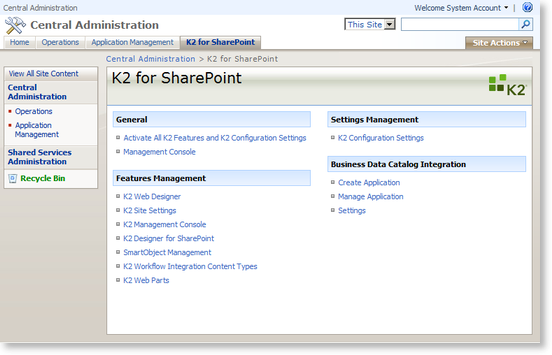
Browse to the SharePoint Central Administration > K2 for SharePoint tab > K2 Designer for SharePoint and K2 Workflow Integration Content Types respectively.
Fig. 1. K2 for SharePoint tab > Features Management |
 |
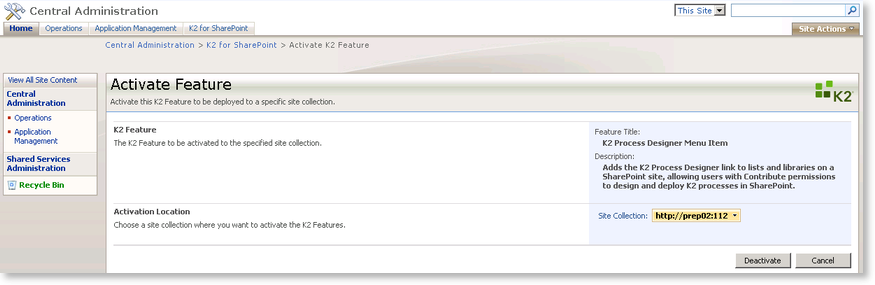
The Activate Feature page will be displayed. Activate the K2 Designer for SharePoint and the K2 Workflow Integration Content Types feature.
Fig. 2. K2 Workflow Integration Content Types |
How to activate the K2 Designer for SharePoint features in a SharePoint Site Collection
|
Open the SharePoint Site Collection |
|
Click on Site Actions > Site Settings 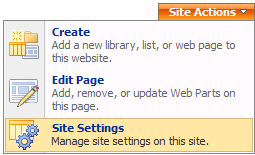
Fig. 1. Site Actions Menu |
 |
Click on Modify All Site Settings. |
 |
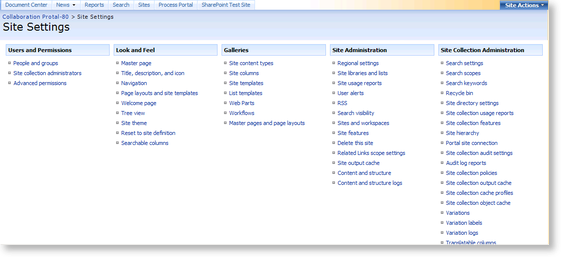
The following Site Settings page will be displayed:
Fig. 2. Site Settings |
 |
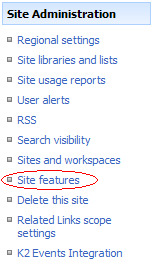
Click on Site features under the Site Administration menu.
Fig. 3. Site Administration Menu |
 |
The Site Features page will be displayed. Activate the K2 Designer for SharePoint Menu Item feature.
Fig. 4. Site Features |
 |
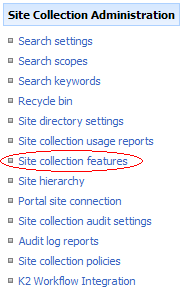
Click on Site collection features under the Site Collection Administration menu.
Fig. 5. Site Collection Administration Menu |
 |
The Site Collection Features page will display, activate the K2 Designer for SharePoint Task Content Type feature.
Fig. 6. Site Collection Features |