Group Policy: Adding Users
This topic provides brief step by step instructions on how to add a User to the Group Policy for the K2 Server Machine and then to force the policy update across the network. These instructions are provided only as a guideline on how this change can be performed and if there are any concerns or queries the organization Administrator should be contacted and or the relevant Microsoft product documentation must be consulted first before implementing these steps.
For further information on the LOGON32_LOGON_BATCH method used, see the topics Machine Interaction and Local Security Policy.
Prerequisites
1 User Account is required with the appropriate permissions to access the network and network resources. For further information and a description of the user permissions required, see the K2 blackpearl Installation and Configuration Guide.
How to add users: What to do ...
The steps below make user of a User Account called RunAsUser which will be added to the Group Policy to enable the Machine Interaction: LOGON32_LOGON_BATCH.
 |
Click on Start > Administration Tools > Group Policy Management 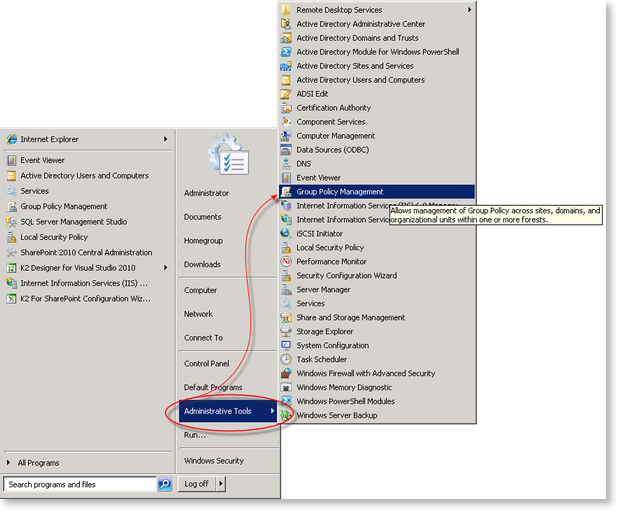 |
 |
Once the Group Policy Management Editor opens, locate the Default Domain Controller policy, right click and select Edit... 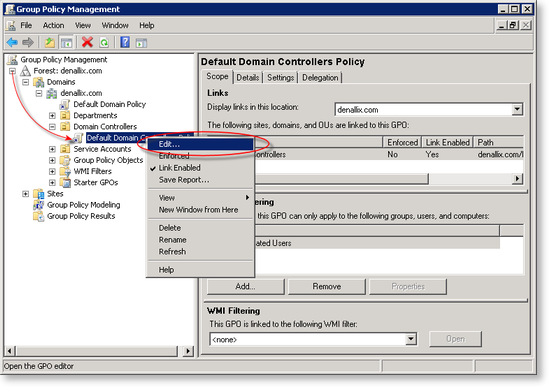 |
 |
Expand the Computer Configuration nodes as shown in the image (click on the link) and then select User Rights Assignment > Logon As Batch Job 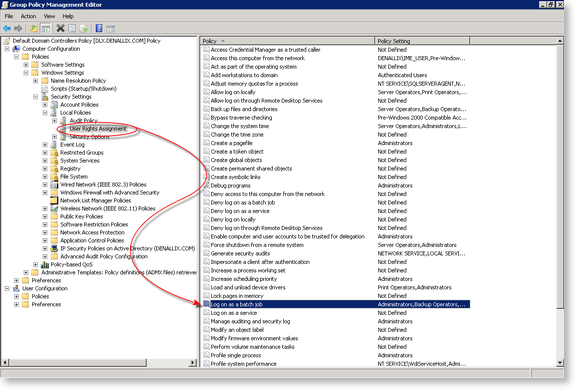 |
 |
Select the option to Add a User.
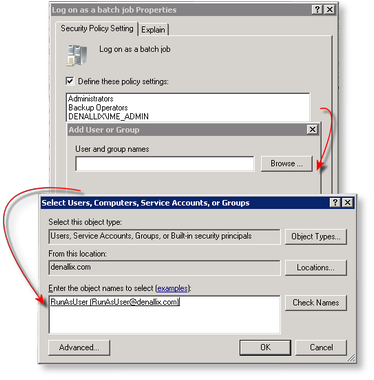 |
 |
If the user was added successfully, then the new user name will appear listed in the Log on as Batch job Properties. Click Ok to close the dialog. 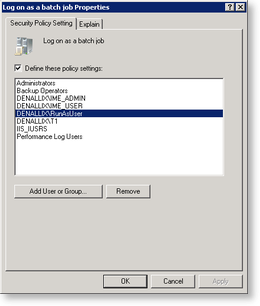 |
 |
Depending on the environment, the changes may propagate quickly, and in some cases take longer. The changes will not take affect immediately unless forced. To force the update do the following:
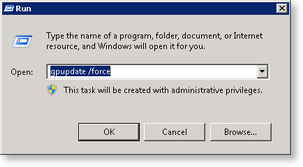 |
