InfoPath Integration - Using Secondary Data Sources when building an InfoPath Integration process in SharePoint
When using Secondary Data Sources with an InfoPath Integration process in SharePoint, there are certain steps that should be performed as best practice. The following scenario provides an overview of how to use this functionality correctly.
Scenario:
Steven designs a new K2 process that uses InfoPath as the Forms Technology. In the InfoPath Form he needs to add a secondary data source, which retrieves data necessary for the end user to complete the Form before it can be submitted. Steven has a problem that when moving his process from the staging or production environment, the secondary data source is still pointing to the development environment.
To rectify this problem, the secondary data source needs to be converted to UDCX (Universal Data Connection) file. This can be accomplished by doing the following:
 |
Open the InfoPath Integrated K2 Process. |
||
 |
Run the InfoPath Process Wizard. 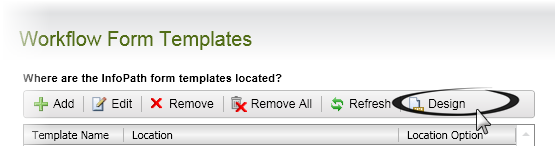 |
||
 |
On the Workflow Form Templates page, click on the Design option. |
||
 |
The InfoPath Form will open in Designer mode. 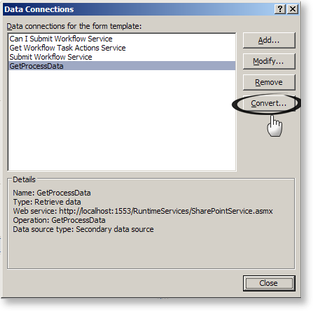 |
||
 |
Select Data Source from the Task Pane, and click on Manage Data Connections. |
||
 |
Click on the Convert button.
|
||
 |
Type in the URL to the UDCX Library on your SharePoint site, as well as the name that you want the UDCX file to be saved as.
|
||
 |
Browse to the UDCX Library on the SharePoint Site. The new file will be shown. |

New Environment
When moving to the new environment, you need to perform the following steps in order for the InfoPath Form to work seamlessly with the secondary Data Source on the new environment:
|
In the UDCX Library of the development environment, save the UDCX File to the File System. |
|
Right click on the UDCX file and open the File in Visual Studio. |
|
Change the Web Service URL from the Development Environment URL to the Staging / Production Environment URL. There are two locations where this needs to be done, in the <UDC: WsdUrl...> section, as well as the <UDC: ServiceURL...> section. |
|
Save the updated UDCX File and ensure that you are able to browse to the location from you Staging / Production Environment. |
|
In the Staging / Production Environment on the SharePoint Web where the InfoPath Form will be used, create a new UDCX Library with the same name as in the Development Environment. |
|
Upload the UDCX File into this new Library. |
