Register Application for Webhook
To allow Nintex eSign webhook to communicate with dynamics instance, it is a requirement to configure the webhook with your dynamics instance client ID, a client secret, and tenant ID. To get the client ID, client secret, and tenant ID an administrator will need to register an app within Azure Active Directory.
After registering an application, you will need to enter the information from the application in the DocumentTRAK hook you create for posting updates back to Dynamics 365.
Register Dynamics 365 Appliction
Login to https://portal.azure.com, navigate to Azure Active Directory, click on App registration and click on New application registration.
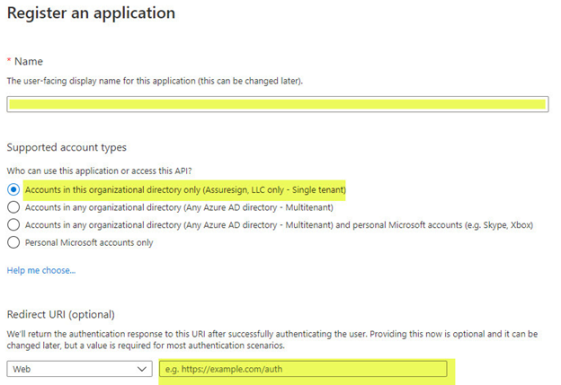
Populate the following fields:
-
Name: Provide a name that uniquely describes your application, such as "eSign to Dynamics 365."
-
Supported account types: Choose a Single tenant to limit only accounts associated within the organization.
-
Redirect URI: Enter the URL of your Dynamics CRM instance.
Create client key by selecting Certificates and secrets and click New Client Secret.
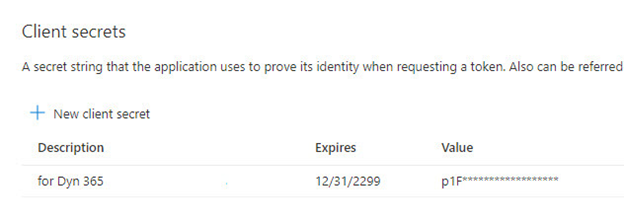
Copy the client secret then navigate to the overview tab and copy Application (client ID) and Directory (tenant ID).
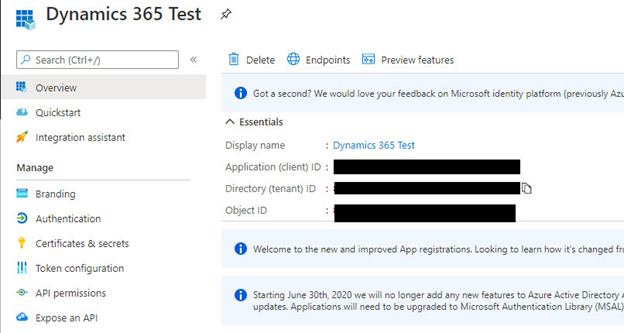
For more information on registering applications, please refer to Microsoft documentation.
After the application is created, create an application user in Dynamics 365.
Go to Advanced Settings > Security > Users
Change the view to Application Users
Add an Application User, and enter the application (client) ID in the Application ID field.
Now, manage the created user's roles, minimally adding:
-
eSign Document Sender
-
Roles typical of a document sender, which will be needed in case updates will be made to entity data from which envelopes were launched. The application user will need to be able to read/write on annotation (notes), and will need to read systemuser.