BPMN 2.0 element guide
Business Process Model Notation (BPMN) 2.0 uses the following element types to illustrate and create business process models:
You can associate documents to specific process model elements. See Associating documents for more information.
Note: To add an event on the modeling canvas, left click on an event from the event box and drag the event into the canvas. Left click again to place the event. Once the event is placed you can use the pop-up that shows next to the event to change the event type, edit the properties of the event, or delete the event.
 Events
Events are triggers that start, modify, or complete a process. Events are shown by circles containing other symbols based on event type. There are three types of events:

Start Event Symbol |

Intermediate Event Symbol |

End Event Symbol |
Events can be either catching or throwing.
Catching events
A catching event is any event that reacts to an external trigger. Something is started once the trigger is activated, such as:
-
A process starting
-
A process or process path continuing
-
A task processing
-
A sub-process being canceled
-
Another process being used while a task or sub-process executes
Throwing events
A throwing event is any event that the process triggers itself, such as:
-
During the process
-
At the end of the process
Activities
An activity, or task, is defined by a particular action required. Activities and tasks are shown by rectangles with rounded corners:

Task Symbol |

Subtask Symbol |
Tasks
There are several different task types, as described in the following table:
| Task | Description |
|---|---|
| Receive | Receiving a message can be modeled as a separate task. This task type is an alternative to the catching message event, which is why the symbol for the event defined in BPMN 2.0 is an empty envelope. |
| Receive (instantiated) | An instantiated task replaces the message start event, and is shown by a small event symbol in the top left corner of the symbol. |
| Script | Scripts execute directly in the process engine, and must be written in a language that the process engine can interpret. |
| Manual | A task executed by a user. The task can be executed by any user with access to the process. |
| Service | A task that is completed by a piece of software. An example is an accounting piece of software that processes pay roll. |
| User | A task executed by an assigned user. |
| Send | Tasks that are executed by a web call, or some web service. Typically very technical, and not often used. |
| Business rule | A task that applies a business rule. |
Sub Process versus Call Activity
Understanding when to use a Sub Process versus a Call Activity helps you create more maintainable and reusable process models.
Sub Process: A Sub Process is a self-contained activity that embeds a complete workflow within a parent process. All activities, gateways, and events exist entirely within the parent process model.
Key characteristics:
-
Completely embedded within the parent process.
-
Creates a dedicated scope for events and exception handling.
-
Must contain exactly one none start event.
-
Must include at least one end event.
-
Sequence flows cannot cross the sub process boundaries.
-
Boundary events can catch exceptions thrown during sub process execution.
When to use a Sub Process:
-
You need to create a localized scope for event handling.
-
The subprocess logic is specific to this parent process only.
-
You want to group related activities for visual clarity without creating a separate, reusable model.
Call Activity: A Call Activity allows you to link your process model to another process model within the same tenant. This enables process reuse and creates navigable connections between related processes in your Nintex Process Manager environment.
Using Call Activity to Reference Another Process:
You can convert an existing Task element into a Call Activity element to reference and reuse other process models within your tenant. This is particularly useful when you want to link to a subprocess or an entirely different process that exists outside the current model.
When to use a Call Activity:
-
You need to reuse the same process logic across multiple parent processes.
-
You want to maintain a single source of truth for shared workflows.
-
The referenced process may be updated independently and those changes should reflect in all parent processes.
-
You need to create navigable links between related process models within your tenant.
How to link to another process model in your tenant:
-
Switch to Call Activity: In Edit Mode, select the Task element you want to convert. Open the element's sub-menu and click the wrench icon. This converts the Task into a Call Activity.
-
Link to Another Process Model: Once converted, open the Properties Panel (or Element panel). You'll find a process selector that allows you to explicitly link to any process model within your tenant, including processes that exist outside the current diagram.
-
Navigate to Linked Process: After linking, you can easily navigate to the referenced process model when viewing the process. This makes it simple to explore and maintain relationships between processes across your tenant.
Important: Call Activities can only link to process models that exist within the same Nintex Process Manager tenant. The referenced process must already exist before you can create the link.
Quick Comparison
| Feature | Sub Process | Call Activity |
| Location | Embedded within parent | Separate process model in same tenant |
| Re-usability | Single use only | Reusable across multiple processes |
| Maintenance | Edited within parent | Edited independently |
| Navigation | Viewed as part of parent | Navigate to linked process model |
| Linking | Not applicable | Links to other process models in tenant |
| Scope | Creates event scope | Reference external process |
Gateways
Gateways are decision points in your process that can change the path of the process based on conditions or events. They are shown as diamonds in the process model, and have several types:
| Exclusive | Also referred to as an "either/or" decision, this is the most common type of decision in a business process. Exclusive gateways limit the possible outcome of a decision to a single path, and circumstances choose which one to follow. |
| Event -based | Event-based gateways are similar to exclusive gateways as both involve a single path in the process flow. In the case of an event-based gateway, however, you evaluate which event has occurred, not which condition has been met. |
| Parallel |
To express parallel flow in BPMN, you use a parallel gateway.
|
| Inclusive | Allows for parallel execution and decision-based exclusion of following sequence flows. |
| Exclusive (event based) | Event-based gateways and exclusive gateways function in a similar way. Users follow only one path of several potential outbound options. Event-based gateways are only triggered on intermediate events, and they wait for the event to occur before they trigger a decision. Event-based gateways only consider the first event that occurs. |
| Complex | Complex gateways are only used for the most complex flows in the business process. They use words in place of symbols and, therefore, require more descriptive text. Use complex gateways if you need multiple gateways to describe the business flow; otherwise, you should use an exclusive or inclusive gateway. |
| Inclusive (event based) | Event-based gateways and inclusive gateways function in a similar way. For inclusive gateways all outbound paths are followed, but are triggered on intermediate events. |
Flows
Flows show the order of operations within a process model. There are two types of flows depicted:
| Sequence flow | Shows the order of activities to be performed. It is shown as a straight line with an arrow. It might show a conditional flow, or a default flow. |
| Message flow | Depicts messages that flow across "pools," or organization boundaries such as departments. It shouldn’t connect events or activities within a pool. It is represented by a dashed line with a circle at the start and an arrow at the end. |
Pools/ Swimlanes
A pool represents major participants in a process. A different pool may be in a different company or department but still involved in the process.
Swim lanes within a pool show the activities and flow for a certain role or participant, defining who is accountable for what parts of the process.
Artifacts
Artifacts are additional information that developers add to bring a necessary level of detail to the diagram. There are three types of artifacts:
| Data object | Shows what data is necessary for an activity. |
| Groups | Helps organize tasks or processes that have related value in the overall process. Groups help to better arrange your BPMN diagram and increase its readability and value. |
| Annotation | Allows you to describe the business process and flow objects in more detail. Annotations help make your BPMN more readable and further increase understanding of your process with end users. |
Canvas tools
Use the following tools to help build and update your process models.
| Hand tool |

|
This tool enables you to drag and drop an already placed element. By default, the hand tool is activated. |
| Lasso tool |

|
This tool allows you to click and drag across several elements and select them. |
| Space tool |

|
This tool allows you to add or remove space to the canvas. |
| Connector tool |

|
This tool allows you to draw different types of connections to different elements or pools. |
| Start event |

|
This element marks the start of the process. |
| Intermediate event |
|
This element marks a secondary or intermediate step in the process. |
| End event |

|
This element marks the end of the process. |
| Create gateway |

|
This element marks a point in the process that could move in different directions depending upon the action needed. |
| Task |
|
This element marks that a task is required for the event. |
| Subtask |
|
This element marks a subtask for an existing task in the process. |
| Data object |

|
This element marks that a task or event might require a script or development process. |
| Storage |

|
This element marks a storage or data event that might require access to a specific database. |
| Pool |

|
This element allows you to create a pool that groups specific elements into a process that is part of a larger process. |
| Group |

|
This element groups surrounded elements into a group boundary. |
Changing element sub-type
After you have added an element to the canvas, click the Wrench icon to access a sub-menu that allows you to quickly change the element's sub-type without needing to delete or remove the icon. For example, if you added a Task element to the canvas, but it needs to be changed to a Sub-task element, you can change this using the sub-menu from the Wrench icon.
Changing element color
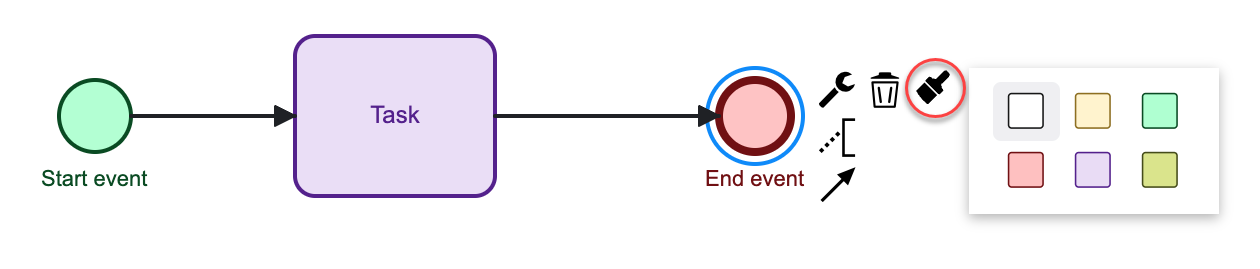
After you have added an element to the canvas, click the Paintbrush icon to access the color palette. Select a color from the palette.
Associating documents
Use Process Manager to add supporting documents to your BPMN elements in a process. You can associate multiple documents to a process model element. See Upload and Link documents for information on how Process Manager manages documents.
To attach a document to a BPMN element first open the process model in edit mode and select the element. In the Element side panel click on the Add Document button. Select how you want to add the document (Attach, Upload, or Link), then select a valid document and click the Add button. You can now save your process model to exit Edit mode and select the element to confirm that the document is available.
Documents can be attached to the following element types:
-
Start, End and Intermediate events and all their sub-types, such as Message, Timer etc.
-
Gateways and all their subtypes
-
Tasks and all their subtypes, except for Sub-processes
-
Data Objects and Data Stores
-
Text Annotations
Documents cannot be attached to the following element types:
-
Flows (Sequence Flow, Default Flow, Conditional Flow, DataInputAssociation, and DataOutputAssociation etc.)
-
Pools and Lanes
-
Groups
-
Sub-Processes
Important: Documents associated to your process models can be archived and deleted. Use bulk delete or archiving of documents with caution.
Add documents to process models